

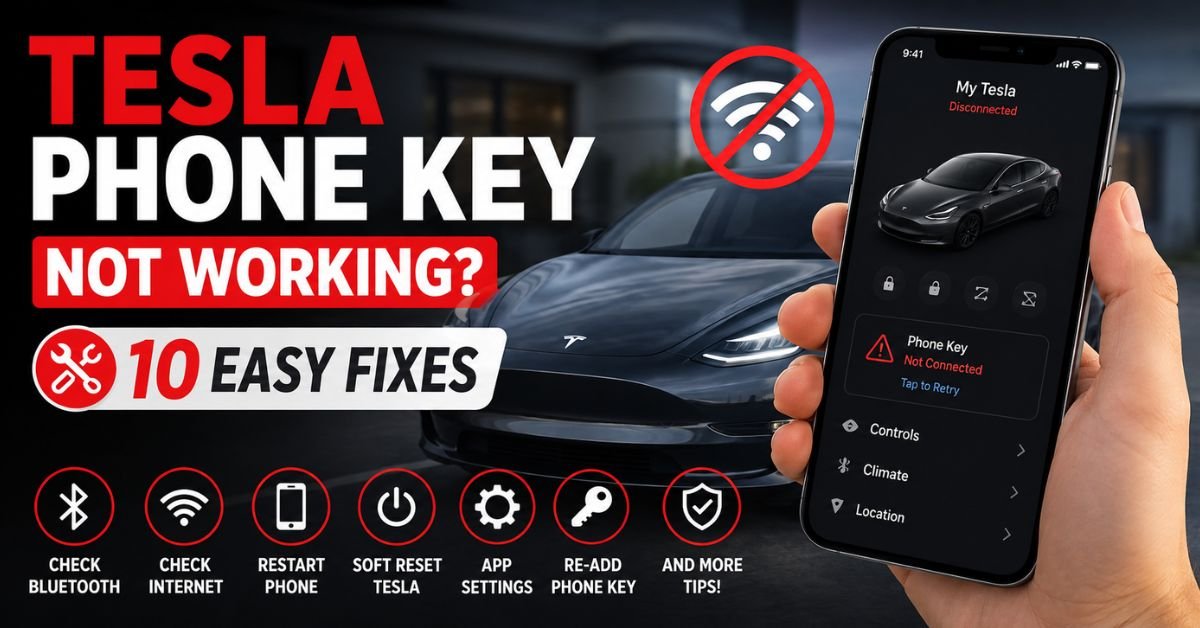
If your Tesla Phone Key Not Working, the cause is usually something simple, such as Bluetooth, app permissions, low phone battery, or a pairing issue. This guide covers the quickest ways to identify the problem, restore your phone key, and use your Tesla key card as a backup when needed.
Quick Answer
When a Tesla phone key is not working, first make sure Bluetooth is enabled, Airplane Mode is off, your phone has sufficient battery, the Tesla app has Bluetooth and location permissions, and the correct vehicle is selected in the app. Stay near the car while testing. If the problem continues, restart the phone and app, then repair the phone key using your key card. Do not remove the existing phone key unless you have a working backup key nearby.
How do I fix a non-working Tesla Phone Key?
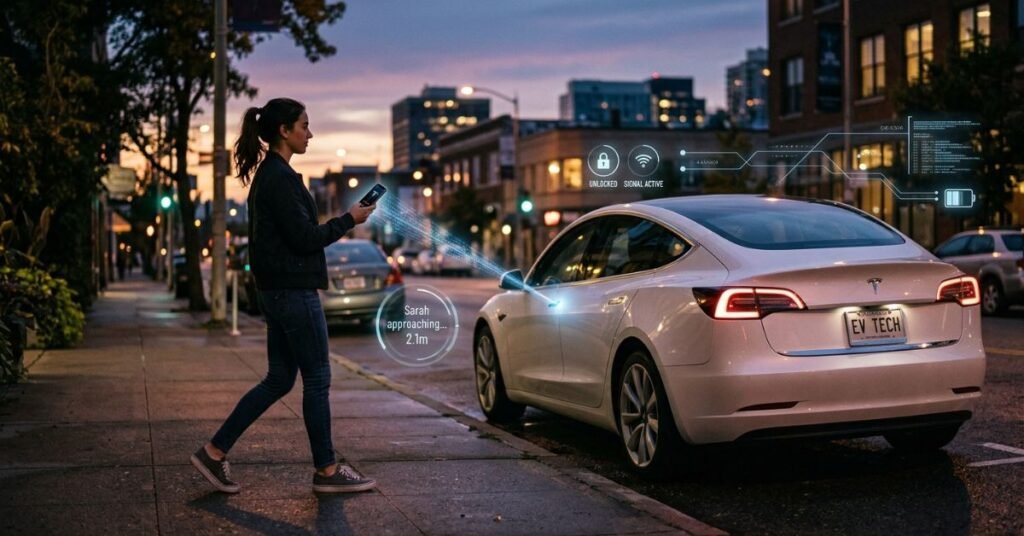
A Tesla phone key is essentially a Bluetooth-based digital key. Your vehicle looks for the authorized phone and uses its proximity to support passive entry and other key functions. Because the system depends on communication between the phone, Tesla app, and vehicle, a small change in phone settings can interrupt the experience.
Tesla identifies several conditions that can affect phone-key detection, including low battery, disabled Bluetooth, location permissions, and pairing problems. Many failures are configuration problems rather than failed vehicle components.
1. Check Bluetooth First
Bluetooth is the first setting to inspect because the phone key communicates with the Tesla through Bluetooth. Open your phone’s settings and confirm Bluetooth is enabled.
If Bluetooth is already on, turn it off, wait a few seconds, and turn it back on. Then open the Tesla app and move close to the vehicle.
Also check that the Tesla app itself is allowed to use Bluetooth. On many phones, app-specific permissions can be changed independently of the main Bluetooth switch.
Bluetooth audio pairing is separate from phone-key authorization.
2. Check Tesla App Permissions
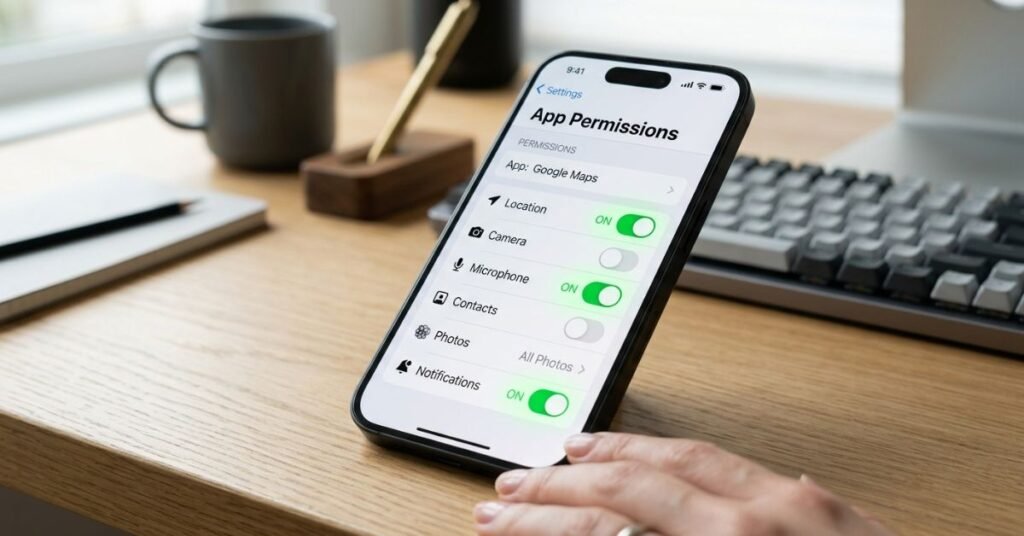
Phone-key reliability depends on the permissions available to the Tesla mobile app. Tesla documentation for supported vehicles instructs owners to allow Bluetooth access and location access for the app.
On compatible phones, Tesla recommends keeping location access set appropriately, including Always where the vehicle manual specifies it, and allowing the app to operate in the background for the best experience.
Check your phone’s settings for the Tesla app and review:
- Bluetooth permission
- Location permission
- Background activity or background app refresh
- Battery optimization restrictions
- Mobile-data access, where applicable
Phone menus and battery controls differ by device.
3. Make Sure Airplane Mode Is Off
Airplane Mode can interfere with wireless communication. If your Tesla phone key suddenly stops working, check that Airplane Mode is disabled.Turning Airplane Mode off removes one possible source of confusion.After checking it, unlock the phone, open the Tesla app, and approach the vehicle again.
4. Check Your Phone Battery
A nearly empty phone can cause unexpected Bluetooth behavior. Tesla specifically warns that some phones may disable Bluetooth functions when battery power is very low. Charge your phone before assuming the vehicle has a problem. If the phone is completely dead, it cannot function as a Bluetooth phone key. This is why a key card remains important even for owners who normally rely on passive phone access.
5. Open the Tesla App and Select the Correct Car
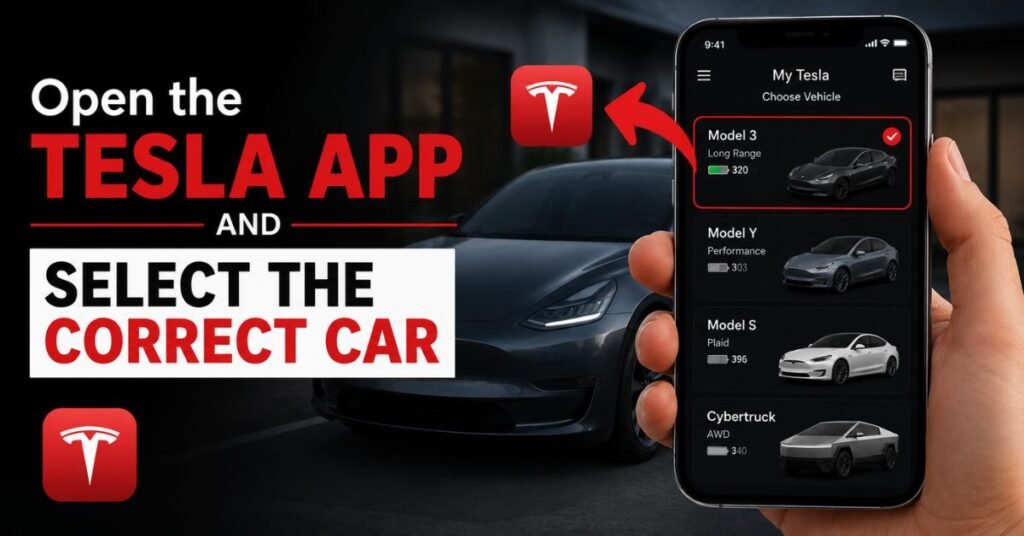
If you have more than one Tesla linked to your account, verify that the vehicle you are trying to access is currently selected in the Tesla app.
Tesla notes that some convenience functions depend on the currently selected vehicle. The app can also be affected by an expired login session or account issue.
Open the app, confirm that it loads your vehicle normally, and check whether you can send a basic command such as lock or unlock. A remote command working does not necessarily prove that passive phone-key detection is healthy, but it can help identify whether the app is communicating with your account and vehicle.
6. Restart Your Phone
A simple restart can clear temporary Bluetooth or operating-system problems.Close the Tesla app, restart the phone, wait for the operating system to finish loading, then confirm Bluetooth and Tesla app permissions again. Open the Tesla app and approach the Tesla.If the phone key works after a restart, the issue may have been temporary.
7. Update the Tesla App and Phone Software
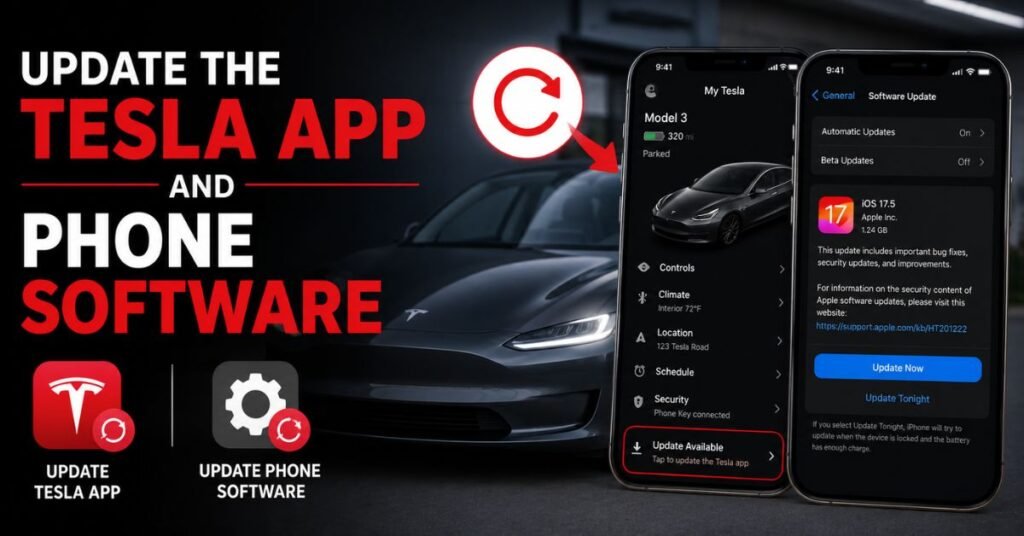
Tesla recommends using the latest version of its mobile app, and its documentation notes that compatibility with older mobile devices is not guaranteed.Check your phone’s app store for an available Tesla app update. Also check for operating-system updates from Apple, Google, Samsung, or your phone manufacturer.
Updates can change permission handling, Bluetooth behavior, battery management, or compatibility. If the problem began after an update, check current Tesla documentation before assuming the vehicle is damaged.
8. Re-Pair the Phone Key Carefully
If basic troubleshooting fails, re-pairing may restore the connection. However, do not remove your existing phone key casually.
Tesla specifically warns owners not to unpair the vehicle or remove the phone as a key without a working key card nearby. Your key card is the safety net that can authenticate access and allow you to restore a phone key.
The general process is to remain near the vehicle, open the Tesla app, select the vehicle, and choose the phone-key setup option. Follow the prompts shown by the app and touchscreen. The exact menu path can vary by model and software version.If automatic setup fails, Tesla may instruct you to use your backup key card to complete authentication.
9. Check for Too Many Connected Keys
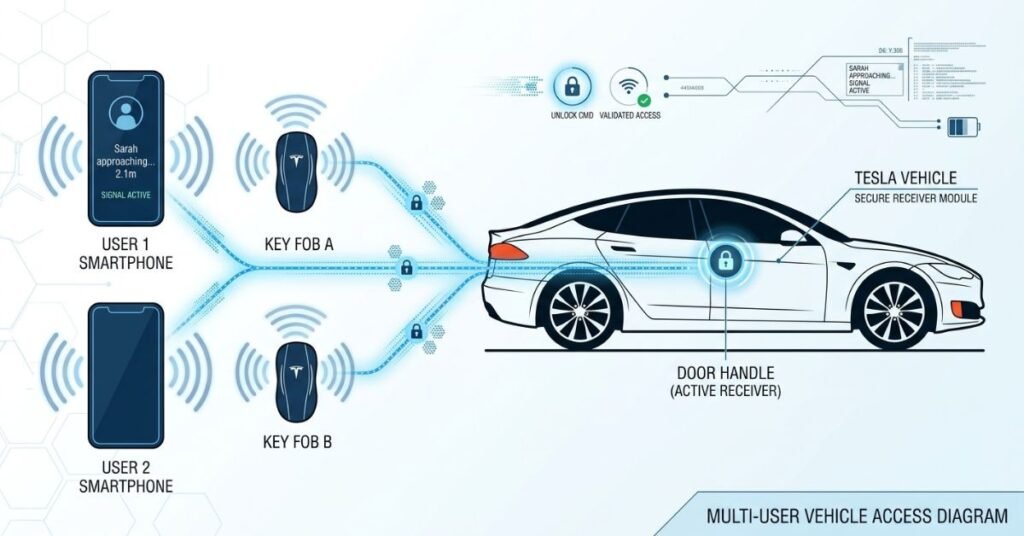
Some Tesla models have limits on how many key devices can connect simultaneously. For example, Tesla documentation for Model 3 says the vehicle can connect to three devices such as phone keys, key fobs, or watch keys at the same time.
If several authorized phones or other key devices are nearby, move them away temporarily or disable their Bluetooth connections while pairing the desired phone.This is easy to overlook in households with multiple Tesla drivers.
10. Try the Key Card Before Suspecting the Car
If the phone key fails, use the Tesla key card according to your vehicle’s instructions. Key cards do not provide the same passive convenience as phone keys, but they are designed as a backup method for access and driving.
If the key card works normally while the phone does not, that points more strongly toward a phone, app, Bluetooth, permission, or pairing issue.If neither the phone nor the physical key works, the problem may require a different troubleshooting path, including checking the vehicle’s systems or contacting Tesla Support.
Common Tesla Phone Key Problems
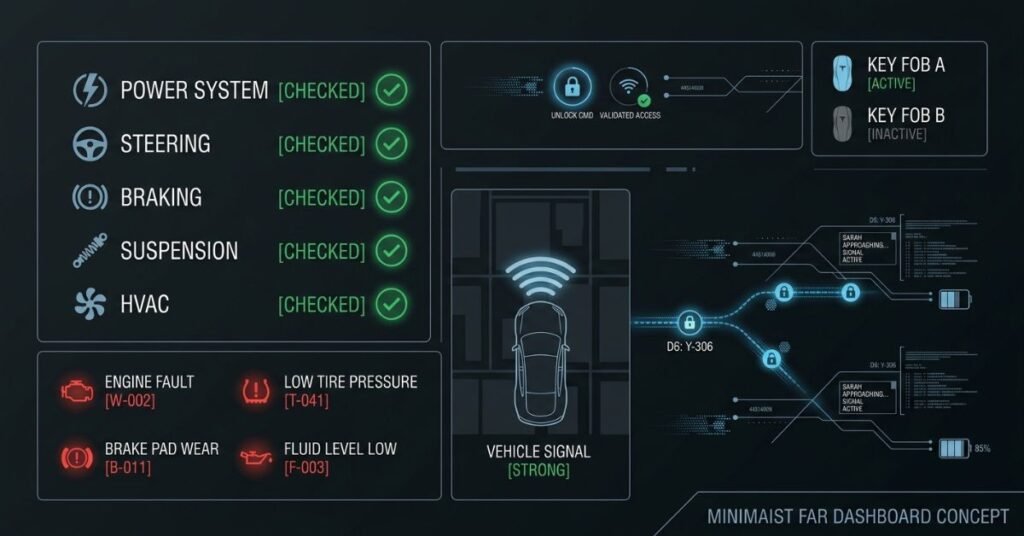
Different symptoms can point toward different causes.
| Symptom | Likely area to check |
| Car does not unlock automatically | Bluetooth, permissions, battery |
| Tesla app works but passive entry fails | Phone-key pairing or Bluetooth |
| Phone key stopped after phone update | App permissions and compatibility |
| App cannot set up phone key | Backup key card and pairing |
| Phone works intermittently | Battery optimization or Bluetooth |
| Key card works, phone does not | Phone or app configuration |
| Nothing works | Vehicle or account troubleshooting |
Not a diagnosis, but a starting point.
What About Internet or Cellular Service?
A common misconception is that your Tesla phone key needs cellular service every time you approach the car. Tesla’s Model 3 manual explains that once a phone has been authenticated, it does not normally require an internet connection to function as a phone key because the key relationship uses Bluetooth.
However, internet access remains useful for Tesla app features that communicate remotely with the vehicle. That distinction matters in areas with weak cellular coverage.Tesla recommends carrying a functional physical key when parking where cellular service is limited or unavailable.
Does Tesla Phone Key Work With Every Phone?
Tesla phone-key compatibility depends on the vehicle, mobile operating system, Tesla app, and device configuration. Tesla says compatibility with older mobile devices is not guaranteed.
Check Tesla support and your owner’s manual for the relevant model and software version.Features can vary by market and software version. Apple Watch key support, for example, depends on supported watch hardware, watchOS, Tesla app, and vehicle software.
Pros and Cons of Using a Phone as a Tesla Key
Pros
- Convenient passive entry and locking.
- No separate key fob required for everyday use.
- Works through Bluetooth once authenticated.
- Easy to carry with a device most people already use.
- Tesla can support additional digital key options on compatible vehicles.
Cons
- A dead or malfunctioning phone can prevent normal access.
- Bluetooth or permission settings can interrupt detection.
- Battery-saving features may affect reliability.
- Phone and Tesla software changes can create compatibility issues.
- You still need a dependable backup key.
Who Should Use a Tesla Phone Key?
A phone key is a strong everyday option for owners who want hands-free access and already carry a compatible smartphone. It suits drivers who prefer not to carry a traditional key.
It should not be your only access plan. Keeping a key card available is sensible, particularly for travel, long periods away from charging, remote areas, or locations with unreliable cellular service.Shared-vehicle drivers should ensure each user has an authorized key and understands the backup procedure.
Frequently Asked Questions
Why is my Tesla phone key suddenly not working?
Check Bluetooth, Tesla app permissions, phone battery, Airplane Mode, and the selected vehicle in the app. Restarting the phone can also resolve temporary Bluetooth problems.
Does Tesla phone key need internet?
Not normally for authenticated phone-key operation. The key uses Bluetooth for proximity detection. Internet access is still useful for remote app functions.
Can I unlock my Tesla if my phone battery dies?
Use your physical key card or another supported key. A dead phone cannot maintain Bluetooth communication.
Should I delete my phone key and add it again?
Only after confirming that you have a working backup key card. Tesla advises against removing a phone key without a backup available.
Why does my Tesla app work but the phone key does not?
Remote app communication and passive phone-key detection are related but not identical. Check Bluetooth, permissions, background restrictions, and phone-key pairing.
Can an Apple Watch replace my Tesla phone key?
On supported combinations of Apple Watch, Tesla app, and vehicle software, Tesla provides Apple Watch functionality and watch-key support. Check current Tesla requirements for your setup.
Can multiple phones be Tesla keys?
Yes, supported Tesla vehicles can have multiple authorized keys, but individual models have limits on simultaneously connected devices. Check your owner’s manual for the exact limit.
When should I contact Tesla Support?
Contact Tesla if the physical backup key also fails, re-pairing does not work, the vehicle shows a key-system error, or the issue persists after checking the phone, app, and permissions.
Conclusion
When your Tesla phone key is not working, start with the simple causes: Bluetooth, permissions, battery level, Airplane Mode, app status, and software updates. Most importantly, keep a working key card available before changing or removing phone-key authorization.
If those checks do not solve the problem, carefully re-pair the phone while following Tesla’s current instructions for your model. Because Tesla vehicles, mobile operating systems, and app versions evolve, the correct menu path can change over time.
The phone key is one of Tesla’s most convenient ownership features, but convenience should not replace a backup. A few minutes spent checking settings and keeping a physical key available can prevent a small Bluetooth problem from becoming a lockout.
{ “@context”: “https://revtesla.com”, “@graph”: [ { “@type”: “Article”, “@id”: “https://revtesla.com/#organization”, “name”: “RevTesla”, “url”: “https://revtesla.com/”, “logo”: { “@type”: “ImageObject”, “@id”: “https://revtesla.com/#logo”, “url”: “https://lh3.googleusercontent.com/pw/AP1GczOZMYbm6vY4sp2fsW-bWnF64lVo6X0hBo4UUzzOzuI5FGoptrIKNf4wMwsOXhnJZpcbuuCpoL6cSK3ErMNVuiRtktuBp0KJGemjwCdPWRLVBVdDYZk=w1920-h1080-rw-nu-e365”, “caption”: “RevTesla Logo” } }, { “@type”: “Person”, “@id”: “https://revtesla.com/#author-tom”, “name”: “Tom”, “worksFor”: { “@id”: “https://revtesla.com/#organization” } }, { “@type”: “TechArticle”, “@id”: “https://revtesla.com/tesla-phone-key-not-working/#article”, “isPartOf”: { “@type”: “WebPage”, “@id”: “https://revtesla.com/tesla-phone-key-not-working/” }, “headline”: “Tesla Phone Key Not Working: 10 Fast Fixes & Troubleshooting”, “description”: “Learn what to do when your Tesla Phone Key stops working, including quick fixes for Bluetooth, app permissions, re-pairing steps, and backup access.”, “url”: “https://revtesla.com/tesla-phone-key-not-working/”, “mainEntityOfPage”: “https://revtesla.com/tesla-phone-key-not-working/”, “author”: { “@id”: “https://revtesla.com/#author-tom” }, “publisher”: { “@id”: “https://revtesla.com/#organization” }, “image”: [ “https://lh3.googleusercontent.com/pw/AP1GczOZMYbm6vY4sp2fsW-bWnF64lVo6X0hBo4UUzzOzuI5FGoptrIKNf4wMwsOXhnJZpcbuuCpoL6cSK3ErMNVuiRtktuBp0KJGemjwCdPWRLVBVdDYZk=w1920-h1080-rw-nu-e365”, “https://lh3.googleusercontent.com/pw/AP1GczPzPdV4HBZSUZ_Zk1jiNY1lFASG7PvQX0shRK0-FMWMaKOkl4aiiKOXvgxe8k2JdJ1GcWLG9-mXDgpCNJUTw264p5Db_OtqppYRWuUoiIlaPLCAPaY=w1920-h1080-rw-nu-e365”, “https://lh3.googleusercontent.com/pw/AP1GczPwzLaLI1FWfd8_Nsna85Jp5QL1AvkZOPYweIq4JYKZZwoQqnDRx8Msedqw_xlbHrOiYjxZhRYOsK1EYx4_uxe0P2PzfMlumBJaW1JHJ6aN7YtppcY=w1920-h1080-rw-nu-e365”, “https://lh3.googleusercontent.com/pw/AP1GczN856oOGrOLMUnK7192QtXQA1CtPe8pHZO528RZlskNhi8H8Jimooqk5A9sqhemE2o2v6d9kZVzMv0QkITslFPMkx9lCce_nD-H8Ua6Yse5FMusE7M=w1920-h1080-rw-nu-e365”, “https://lh3.googleusercontent.com/pw/AP1GczOzvTnQLNpRw4THxlGeF2ZkwBokZ1TJtNnFt5tMihQqws4yDZPOpYNzD3JialXDwAEtL4Q9tcv1wC1CFA79TT4HtvZQBIjfBQPoXTTO4N-Ykv-WvpE=w1920-h1080-rw-nu-e365”, “https://lh3.googleusercontent.com/pw/AP1GczO9ptnQoCflUbvOBOllybU07PPsiGl-s_aNpKz71ZAxGLOoS2QGGlrc8VUyeQ5191v07j0B0FM2D267_FGcGV73vZIYDAqc8FVMHaUqLBdmsY92Ygw=w1920-h1080-rw-nu-e365”, “https://lh3.googleusercontent.com/pw/AP1GczOG7y_NkbXCeTW6Oe58gqsJv9jmklPbHHZx1wPb4O7Q-JWRh5rTnFzlEIfe7Z25p9lPMhgrLWA0A2JjxbZYROIF69NfB3fG3QMnRcQgLDuY-2KZDhk=w1920-h1080-rw-nu-e365”, “https://lh3.googleusercontent.com/pw/AP1GczP8g9aWw4F5glITdm1upocbfLtd5-SziqV9EZtcx8ehWz_pNOxQeCcQjYO_AFJUwhDkLub9rcA43cZs3mgdgcOpaqlPE0NqzHU9Hx935XGl0A7DYeY=w1920-h1080-rw-nu-e365”, “https://lh3.googleusercontent.com/pw/AP1GczOHyt9_UqzrE0Z96z16Kd6tHsEQ8vWh9S3HbFW0m-8yWcLjWFyo57tPHvbL88_xg7bpv29UQbvVN1pET9G1u5X-ky_w3Yvde3QUP-9jnhf_lbnkFwE=w1920-h1080-rw-nu-e365”, “https://lh3.googleusercontent.com/pw/AP1GczOTh9PTwg0k3hvtm2Ws-MNJW0wDRjuLzgYSGpV6TxrU1fQGVDHUdkf_I0-ppino6rA5BspVUu4v_bO3D19pOuELOF6szVXWaGBT99-FIPoA0fKmIhQ=w1920-h1080-rw-nu-e365”, “https://lh3.googleusercontent.com/pw/AP1GczMGntRV-PNQq6TVbVU_jH0x9I1yUPUmPWKT3z2m0Yh1b-zH30GKspv90GLeP8UKZM3Llr00RXiquPz_BAzoRRYjzLdRyT4eHVjp68OUVpKevWY50sI=w1920-h1080-rw-nu-e365”, “https://lh3.googleusercontent.com/pw/AP1GczNPjS_9FYo6dA2BXnrdNjHAsSnQHRHz1MsFDaAGqvjV_boCcrjuZ-o3a1v6rvSFYTt9_dlOFHgpYCrYTEJ9dLTHfkPacCwG6mRUW9lzSsnixNkDX88=w1920-h1080-rw-nu-e365”, “https://lh3.googleusercontent.com/pw/AP1GczMh_p884J-xwuhcrxAAdN2zYhGBiKfuG7phfHoGvqNR9PINZYXsyFhKhhFxHWrC4m4r3Ro-iw-2cDCkE2fVoP9wy-w9rFj_Nc39T2oHrH9ZukNDaGM=w1920-h1080-rw-nu-e365” ] }, { “@type”: “BreadcrumbList”, “@id”: “https://revtesla.com/tesla-phone-key-not-working/#breadcrumb”, “itemListElement”: [ { “@type”: “ListItem”, “position”: 1, “name”: “Home”, “item”: “https://revtesla.com/” }, { “@type”: “ListItem”, “position”: 2, “name”: “Tesla Phone Key Not Working”, “item”: “https://revtesla.com/tesla-phone-key-not-working/” } ] }, { “@type”: “FAQPage”, “@id”: “https://revtesla.com/tesla-phone-key-not-working/#faq”, “mainEntity”: [ { “@type”: “Question”, “name”: “Why is my Tesla phone key suddenly not working?”, “acceptedAnswer”: { “@type”: “Answer”, “text”: “Check Bluetooth, Tesla app permissions, phone battery, Airplane Mode, and the selected vehicle in the app. Restarting the phone can also resolve temporary Bluetooth problems.” } }, { “@type”: “Question”, “name”: “Does Tesla phone key need internet?”, “acceptedAnswer”: { “@type”: “Answer”, “text”: “Not normally for authenticated phone-key operation. The key uses Bluetooth for proximity detection. Internet access is still useful for remote app functions.” } }, { “@type”: “Question”, “name”: “Can I unlock my Tesla if my phone battery dies?”, “acceptedAnswer”: { “@type”: “Answer”, “text”: “Use your physical key card or another supported key. A dead phone cannot maintain Bluetooth communication.” } }, { “@type”: “Question”, “name”: “Should I delete my phone key and add it again?”, “acceptedAnswer”: { “@type”: “Answer”, “text”: “Only after confirming that you have a working backup key card. Tesla advises against removing a phone key without a backup available.” } }, { “@type”: “Question”, “name”: “Why does my Tesla app work but the phone key does not?”, “acceptedAnswer”: { “@type”: “Answer”, “text”: “Remote app communication and passive phone-key detection are related but not identical. Check Bluetooth, permissions, background restrictions, and phone-key pairing.” } }, { “@type”: “Question”, “name”: “Can an Apple Watch replace my Tesla phone key?”, “acceptedAnswer”: { “@type”: “Answer”, “text”: “On supported combinations of Apple Watch, Tesla app, and vehicle software, Tesla provides Apple Watch functionality and watch-key support. Check current Tesla requirements for your setup.” } }, { “@type”: “Question”, “name”: “Can multiple phones be Tesla keys?”, “acceptedAnswer”: { “@type”: “Answer”, “text”: “Yes, supported Tesla vehicles can have multiple authorized keys, but individual models have limits on simultaneously connected devices. Check your owner’s manual for the exact limit.” } }, { “@type”: “Question”, “name”: “When should I contact Tesla Support?”, “acceptedAnswer”: { “@type”: “Answer”, “text”: “Contact Tesla if the physical backup key also fails, re-pairing does not work, the vehicle shows a key-system error, or the issue persists after checking the phone, app, and permissions.” } } ] } ] }